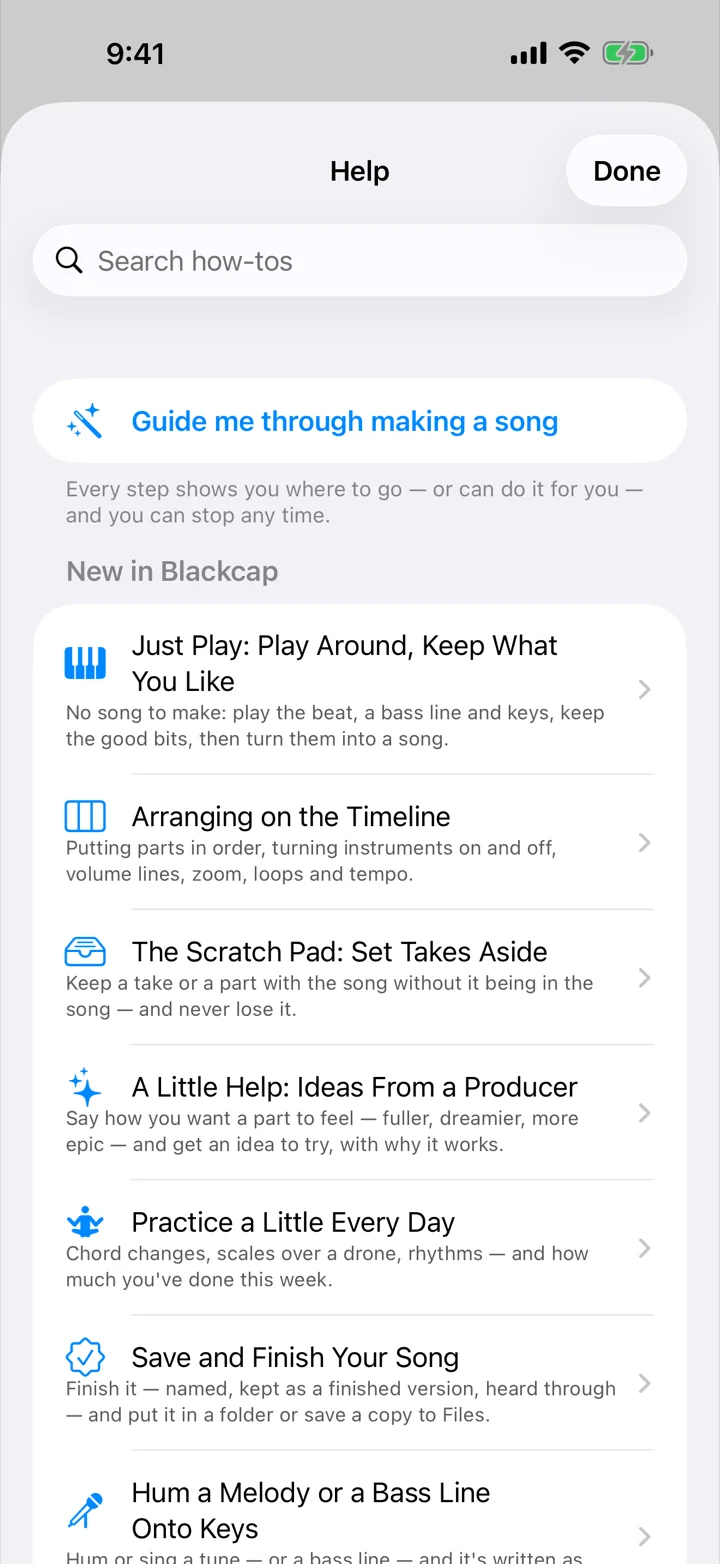
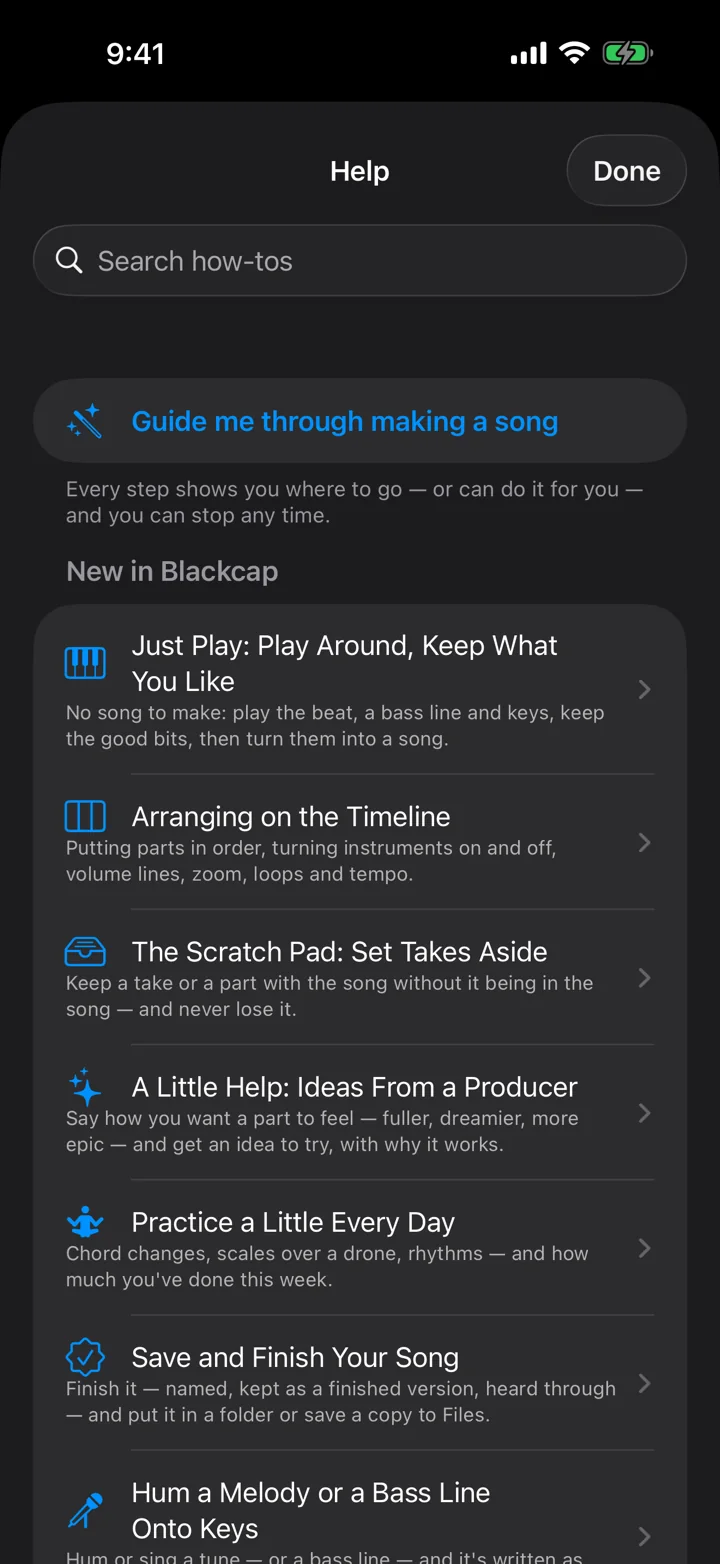
Everything in Blackcap's Help, as web pages. These are the same articles you find under ? and Help in the app, grouped the same way, so what you read here matches what's on your screen. New in Blackcap comes first, as in the app.
New in Blackcap 8
The newest features first: Just Play, the Scratch Pad, a little help, saving and finishing, humming and beatboxing, the Beat Library and more.
Beginner, Intermediate and Pro; Quick Song; Song Ideas; building your song from pieces; the Scratch Pad; a little help; saving and finishing; practice; your first song in ten minutes; a tour of the screens.
Writing a chorus people remember, verse and chorus contrast, chords that feel like something, a song that goes somewhere, and what to do when you're stuck.
The “?” walkthroughs: how each screen works, control by control, in the order the controls sit on the screen.
How the Beat Works
The drums of your song: a grid of hits that plays round and round.
Drums (the kit)The kit's name is on it. Tap it to change the kit, or any one drum's sound. Your pattern stays the same.
Tap In | Play LiveTap In: tap squares to place hits. Play Live: big pads you play in time, and Record hits writes what you play into the grid.
⋯ (More)Speed, Swing and Timing; the Beat Library (a hundred-odd beats to start from); Beatbox a Beat; Make It Busier or Simpler; This Beat (what it is, save it, bounce it); Bars (make the beat longer than one bar); A Little Help; and Clear the Beat.
Plays inThe song's parts. Lit ones play this beat: tap one to bring the beat in or drop it out. Press and hold one to give it a beat of its own.
− 100 +, 4/4 and SwingThe speed in beats a minute; 4/4 opens Timing (time signature, bars, step size); Swing makes every second step land a little late, from straight to a shuffle.
The gridEach row is a drum, each square a moment in the bar. Tap a square to add or remove a hit. Press and hold one for louder, softer, a pitch, or a quicker roll. Tap a drum's name for ready-made patterns.
BarsA beat of one bar has no bar row: ⋯ → Bars copies it to a new bar or adds an empty one. With two or more, the bars are above the grid — tap one to see it.
ScenesOther versions of the beat to keep and switch between while it plays, or to give a part of the song (shown in the full studio).
The play barPlay starts where this beat plays. Beside it: the metronome, Loop (round and round the part you're in), tap tempo, and how loud the rest of the song is while you work.
Every keyboard part of your song: a bass line, chords, a melody, a pad.
‹ The sound ›Tap the name for every sound, grouped by kind; ‹ and › step to the one before or after.
My PartsKeep a part you've made, and bring it into any song.
⋯ (More)Add a Layer (another sound playing along — a melody over your chords, a pad under a bass line); Turn it into a Recording; Rename; and another Keys part for one part of the song, like the chorus.
Plays inThe song's parts. Lit ones play these keys: tap to bring them in or drop them out. Press and hold one to give it a Keys part of its own.
Piano · Chords · Strips · RollFour ways to play: a keyboard; the key's chords as pads; strips that play a chord up and down; or the Roll, where you draw notes in.
The keysPlay them. − and + move them an octave; the range is between.
Record · Hum · Arpeggio · HighlightRecord: switch it on, press Play, and what you play joins the loop. Hum: hum a tune and it's written as notes. Arpeggio: hold a chord and it plays the notes one by one. Highlight: light up a scale on the keys.
Effects and the play barEffects (top right) shape this sound. Play starts where these keys play in the song; Loop goes round the part you're in.
Follows the chords, and the sound's knobsFollows the chords moves your part to fit each part's chords. Below: A Little Help, Tone and the other knobs (More sound controls has Character, Length, Room and Record Knob Moves), Design sound for every setting, MIDI Effects, and the key with Lock Scale, which keeps every key in the song's key.
Sixteen pads, each holding one sound — ready-made, recorded, or brought in — to play or put in the beat.
Find a SoundDrum-machine hits, real drums, instrument notes and the sounds you've kept, onto the pad that's chosen.
Pads | KeyboardPlay the pads, or play the chosen pad's sound up and down a keyboard.
⋯ (More)Hold to Repeat (a held pad repeats in time), Import a File, Record What's Playing, Starter Kits, and Clear.
Plays inThe song's parts. Lit ones play your pads in the beat: tap to bring them in or drop them out.
The padsTap to play. The pad you tap last is the one you're working on: what you record, find or change goes onto it. With every pad empty, a starter kit fills them all.
Record and With the beatRecord a sound onto the chosen pad from the microphone. With the beat on, it records along with the song and lines up with beat 1 (use headphones). A take already in the song can come here too: Put on a Pad on the Timeline.
Pad 1 · its sound › EditOpens the chosen pad's sound: its shape (drag the edges to trim it), and a row of what you can do with it — swipe the row sideways for more: Use in beat, Play on keys, Chop it into slices, Lock to the beat, Reverse, Sound for its volume, pitch and fades, and In the beat (which pad the Beat's Sample row plays).
Effects and the play barEffects (top right) shape every pad's sound. The play bar plays the song, so you can play the pads along with it.
Your whole song on one page: the parts across the top, what plays in each one down the side.
Overview · Chart · Words · Timeline · MixThe five ways to look at your song. You're on the Overview.
Finish & ShareMake the finished song and send it, save it, or put it out.
The gridEach column is a part (intro, verse, chorus…), each row a layer (chords, beat, keys, sampler, recordings). A lit square plays in that part: tap it to bring it in or drop it out. Press and hold one for more, like a beat of its own.
A row's nameGoes to that layer's screen to change it.
A part's namePlay from it, loop it, play it again, move it, or take it out of the song.
The chords of each part, bar by bar, with the words under them.
Key and Major / MinorThe song's key. Change it and the chords stay; Transpose moves everything.
Chords playThe chords play along with the song, in the sound you choose under Chord player and count-in.
TransposeMoves the key, every chord and your keys' notes up or down together.
Song SheetThe chords and words on a page, to print or share.
Each partIts bars, each with its chords and a line for words. Tap a bar's chord to change it, or + to add one; the part's menu has a chord progression, its length, Clear and more.
Play Parts LiveThe parts as pads: play them in any order, and keep the order you like.
Your song from start to end, part after part, with a row for each instrument and recording.
The rulerTap it to start playing from there.
The partsTap a part for its buttons: Loop This Part, Tempo & levels, a fill at the end, and moving it.
The rowsOne for each instrument. Tap a part's block in a row to drop that instrument out of the part, or bring it back.
RecordingsTap a take to choose it, drag it to move it, drag its edges to trim it. Its buttons split, record again, choose another take, put a copy on a Sampler pad (Put on a Pad), and change its volume.
ZoomPinch, or use the zoom buttons, to see the whole song or one bar up close.
Add a partAnother part at the end: one you have again, or a new one.
Draw volumeDraw a line across a row to fade it in, out or down for a moment; the Volume lines menu clears one.
How loud each part is, where it sits left to right, and the finishing touches.
Mix It for MeA good starting balance in one tap. Move anything you like after; Undo goes back.
MasteringJumps to the finishing touch at the end of the page: one style that makes the whole song sound finished.
Finish & ShareMake the finished song and send it, save it, or put it out.
Each instrument and recordingSolo hears just that one; Mute turns it off for now. Volume and Pan set how loud it is and where it sits. Effects and Plug-ins shape its sound.
Room and Song's EchoOne room and one echo the whole song shares; send each part a little from its Effects.
Record your voice or an instrument into the song, a take at a time.
Record Something NewChoose what you're recording (vocals, guitar, bass…) and it's set up with a sound that suits it.
Your RecordingsOnce you've recorded something: each instrument, to record more on, hear, or change its sound.
Play Into BlackcapRecord what you play on the Keys, the pads or the drums instead.
A recording's pageYour sound (what it records from, Hear Yourself through headphones, and for a guitar or bass its amp, cabinet and plug-ins), then a big Record with how loud the music plays while you record, your takes (the square-grid button beside one puts a copy on a Sampler pad), and how it sits in the mix.
Play around with no song to make. Keep what sounds good, then turn it into a song.
Add a BandDrums, bass, keys and guitar to play along with, in any style and key. It joins at your speed; a new style asks before changing it. − and + set the speed.
Beat · Bass · Keys · Sing & PlayWhat you're playing. A MIDI keyboard plays whichever of Bass or Keys is open.
BeatPlay Live: drum pads to play in time. Tap In: the grid, to place hits one by one.
Bass and KeysA keyboard each, with its own sound, just above Keep That. − and + move it up or down an octave.
Sing & PlayYour guitar, bass or voice, heard through an amp and effects (with headphones).
Keep ThatKeeps the last 4 bars you just played as that part, playing round and round. Hold it for 2 or 8 bars. No need to press Record first. Under it: how many notes it heard, how many the last 4 bars hold, and what you've kept (× lets one go).
Turn into a SongA new song from the beat, the band (if you added one) and what you kept, with a verse, a chorus and chords to match.
RecordCatches everything you hear as a recording, kept in Recordings (the waveform, top right).
Undo and RedoAt the top: take back a keep, a cleared part or a change to the beat, or bring it back.
 Blackcap